

Turn a product URL into an editable video ad
Paste a public product page—including Shopify—or an app listing. Vife extracts a reviewable brief, presents three ad angles, and builds the one you approve as an editable 15-second vertical video.
Start with an example product URL

Glass Lip Balm Product Close-Up

A Quiet Morning in Pure Cotton
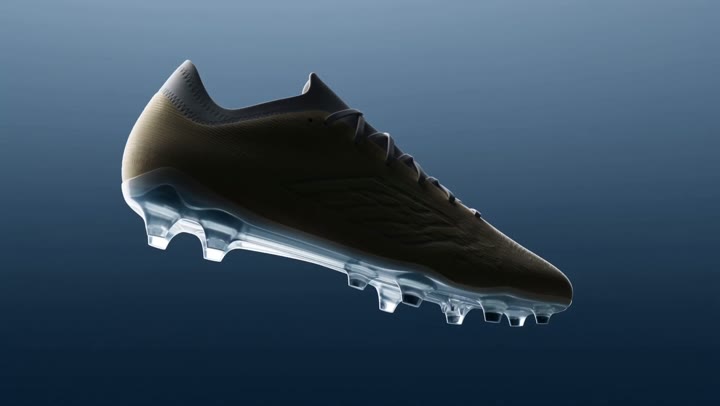
Zero-Gravity Soccer Cleat

Pizza Ingredients in Midair

The Perfect Espresso Pour
VIFE can make mistakes. Verify important information.
What happens after you paste a product URL
Paste a public product page—including Shopify—or an app listing. Vife extracts a reviewable brief, presents three ad angles, and builds the one you approve as an editable 15-second vertical video.
1. Review the product brief
Vife extracts the product or app name, description, visible price or offer, page-stated features and claims, and candidate images or media. You correct anything missing or wrong.
2. Compare three ad angles
Compare three genuinely different angles. Each includes a hook, script outline, visual direction, proof point, and CTA. Choose one or ask Vife to revise it.
3. Approve the production plan
Review the script, shot plan, visual direction, voiceover, captions, and CTA before image, video, or audio generation starts.
4. Edit the first video
The first output is a 15-second 9:16 product ad with an editable timeline. Continue in the Agent to request another aspect ratio, duration, language, or creative style.
Make a product video from verified product facts
A product URL supplies context. Your approved claims, audience, and creative direction determine what belongs in the ad.
- Paste a public product URL and name the audience, channel, and desired action. Add approved product images if available.
- Review the extracted facts and proposed hooks. Remove unsupported performance claims, invented reviews, and unapproved offers.
- Generate a first cut, then inspect product appearance, captions, audio, and timing. Export the approved creative for your own publishing workflow.
An example brief to adapt
Use my product page to propose three short vertical ad hooks for first-time buyers. Start with a fact card, use only supported product claims, and flag missing details. Wait for my chosen angle before producing the first cut.Plan a product launch campaign
Plan an AI product video before you spend credits on generation
The product page supplies context; it does not replace a creative brief. A clear audience, one supported benefit, and one call to action make the first video easier to review. Vife's product-URL workflow asks you to review the facts and production plan before generating media.
1. Check the product facts
Use a public product URL and verify the product name, visible price, variant, and offer. Supply approved product images when the page is blocked or incomplete. Label missing details instead of asking the agent to invent them.
2. Approve a short, specific storyboard
Choose one of the proposed ad angles. For a 15-second first cut, review the opening hook, product demonstration, supported benefit, and closing CTA. Confirm format, voiceover, captions, and the production plan before media generation.
3. Review the edit and test one change
Inspect the product shape, packaging, text, voiceover, and every factual claim. Keep a usable first version, then change one hook or CTA at a time. A generated video is a creative asset; it does not predict sales or automatically launch an ad campaign.
A product-video brief to adapt
Product URL: [public URL] Audience and market: [who, where, language] Objective: [one action the viewer should take] Verified benefit and proof: [claim plus source] Offer and CTA: [current offer, destination] Format: 15 seconds, vertical 9:16. Suggested sequence: 0–3s hook; 3–8s product demonstration; 8–12s supported benefit; 12–15s CTA. Approved assets: [owned or licensed images, logo, references] Show the extracted facts and missing details first. Then propose three angles and a production plan. Wait for my reviews before generating media. Do not invent reviews, before-and-after results, discounts, or performance claims.
Before you publish a product video
- Verify that the featured product and offer match the destination page.
- Check generated lettering, logos, packaging, faces, and product details at full size.
- Confirm rights to source assets and review the final voiceover and captions.
- Read the credit estimate before generating another variation; length and model affect cost.
Frequently asked questions
What URL should I paste?
Start with one public product page, Shopify product, brand product page, Apple App Store listing, or Google Play listing. Vife can also inspect many public media links when they provide source context. Login-only pages, CAPTCHA, DRM, geo-blocking, expired signed URLs, and platform restrictions can still prevent extraction.
What happens after I paste the URL?
Vife reads the source and shows the extracted product facts for your correction or approval. It then presents three ad angles and a production plan for a second review before generating any images, video, or audio.
How does Vife keep product claims grounded?
Vife separates source-backed facts, inferred positioning, and missing information instead of treating every idea as a fact. You approve or correct the brief before production, and you should still verify important prices, offers, specifications, and claims.
What does the first video include?
The default first output is one approved 15-second vertical product ad with product shots, voiceover, captions, editable benefit text, one CTA, and an editable timeline.
Can I create other sizes, durations, languages, or UGC versions?
After approving the first cut, ask the Agent for a 1:1 or 16:9 version, a different duration or language, another CTA, or a separate UGC-style version. Each additional version may require another plan review and generation credits.
Can Vife reuse images or videos from the page?
Vife can identify candidate public images or media, but public access does not prove copyright or advertising permission. Only reuse assets you own or are authorized to use.
When are generation credits used?
Image, video, and audio generation starts only after you approve the product facts and production plan. Credit use then depends on the selected models, duration, and number of versions.
Does Vife publish to my ad account?
No. This workflow creates and edits the brief, scripts, media, and video timeline. Publishing and advertising-account changes remain under your control.