Create images from text with an AI image generator

Describe the subject, composition, lighting, and style, then compare current image models and supported sizes in one workspace.

Generate your first image free

New accounts get 40 starter credits — enough for one ChatGPT Image 2 or Nano Banana 2 image at standard settings. No card required.

Describe the image you want to generate...

Image generation examples

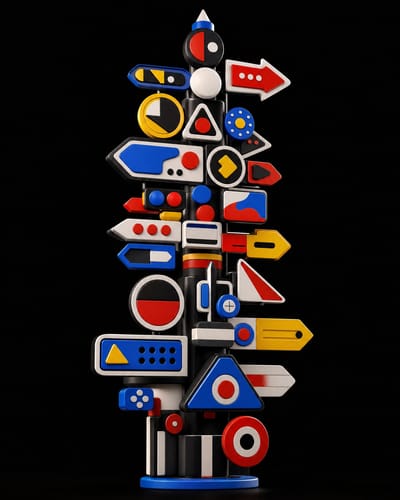
Sculptural Signpost Render

Sculptural Signpost Render

Image
Sprinkle Factory Donut

Sprinkle Factory Donut

Image
Glowing Orb in Hands

Glowing Orb in Hands

Image
Surreal Cloud Collector

Surreal Cloud Collector

Image
Prickly Pear Cactus Studio

Prickly Pear Cactus Studio

Image
Daily Market Grocery Store

Daily Market Grocery Store

Image
Surreal Mascot Icon Set

Surreal Mascot Icon Set

Image
Felt Knit Bust Portrait

Felt Knit Bust Portrait

Image
Dreamy Cycling Illustration

Dreamy Cycling Illustration

Image
Futuristic Abstract 3D Render

Futuristic Abstract 3D Render

Image
Surreal Still-Life Vignette

Surreal Still-Life Vignette

Image
Retro Gardener Mascot 3D

Retro Gardener Mascot 3D

Image
Yoga Studio Illustration

Yoga Studio Illustration

Image
Retro Lego Cartoon Art

Retro Lego Cartoon Art

Image
Street Café Illustration

Street Café Illustration

Image
Mythic Dragon Oracle

Mythic Dragon Oracle

Image
Surreal Sea of Clouds

Surreal Sea of Clouds

Image
Warlock vs Knight Showdown

Warlock vs Knight Showdown

Image
Bioluminescent Octopus Abyss

Bioluminescent Octopus Abyss

Image
Dreamy Cloud Room

Dreamy Cloud Room

Image

VIFE can make mistakes. Verify important information.

A focused text-to-image workflow

Write one clear prompt, choose a current image model and supported size, then compare and refine the generated results.

Prompt
Your direction

Start with a visual brief

Describe the subject, setting, composition, lighting, palette, and style instead of relying on a vague one-line idea.

Models
One workspace

Compare current image models

Choose among the image models currently available in Vife and use the controls each model actually supports.

Size
Model-specific

Choose a supported format

Select a square, portrait, or landscape size offered by the chosen model for the channel you are designing for.

Review
Before use

Review and iterate

Inspect the result, revise the prompt or model, and generate another version before downloading or continuing the asset.

Start from a text prompt
The page opens in Image mode so you can begin with a written brief; focused existing-image workflows are also available on their own pages.
Model-specific controls
The composer shows the sizes and options supported by the model you select.
Results stay iterative
Change the prompt, model, or format and compare another generated direction in the same workspace.
You review the output
Check accuracy, rights, brand fit, and channel requirements before publishing or using a generated image.

Create visuals for real campaign formats

Use text-to-image generation for original concepts when a written brief should drive the result.

Ad and campaign concepts

Explore visual directions for paid social, display, launches, and creative reviews before final production.

  • ·Campaign concepts
  • ·Format-aware prompts
  • ·Reviewable variants

Create a bold vertical launch concept with clean space for approved copy

Social posts and thumbnails

Generate square, portrait, or landscape ideas for feeds, covers, thumbnails, and editorial graphics.

  • ·Social formats
  • ·Thumbnail concepts
  • ·Visual variations

Design a high-contrast thumbnail concept with one clear focal point

Moodboards and style exploration

Compare lighting, color, composition, and art-direction ideas before committing to a larger creative system.

  • ·Lighting direction
  • ·Color systems
  • ·Composition tests

Explore a warm editorial style with soft daylight and restrained color

Plans

Generate your first image free

New accounts get 40 starter credits — enough for one ChatGPT Image 2 or Nano Banana 2 image at standard settings. No card required.

Payments securely processed by Stripe
Cancel anytime · access continues until the end of the billing period
VISA · Mastercard · Amex · Apple Pay · Google Pay · Link

What can starter credits cover?

Your 40 starter credits are shared across generations. Choose one image to try first; additional images and higher-cost models need enough remaining credits.

Nano Banana 2
One image at the model's reference settings
Example estimate: 36 credits
ChatGPT Image 2
One image at the model's reference settings
Example estimate: 29 credits

Illustrative estimates from Vife's model catalog, not a fixed quote. Reference inputs, settings and final provider usage can change consumption. Start with one small test and review usage before repeating.

Turn your next visual brief into an image

Return to the composer, write a specific prompt, choose a model and supported size, and generate a result to review.

Text
Prompt input
Models
One workspace
3
Format families
Review
Before use

AI Image Generator capabilities

Create images from text prompts with AI. Compare ChatGPT Image 2, Nano Banana, Seedream, Imagen, Flux, Ideogram, Recraft, and Kling Image.

Text to image with clear controls

Describe the subject, composition, lighting, and style, then choose a supported size to create visuals for ads, social posts, thumbnails, and concepts.

Current image models in one workspace

Choose ChatGPT Image 2, Nano Banana, Seedream, Imagen 4, Flux Pro, Ideogram, Recraft, or Kling Image, then compare the results that fit your brief.

Sizes for real campaign formats

Choose a supported square, portrait, or landscape size for social posts, ads, thumbnails, banners, and early product concepts.

Iterate and reuse your result

Adjust the prompt or model, generate another result, download the image, or continue with it in a Vife video, presentation, or document workflow.

From a text prompt to a usable image

A clear subject, composition, lighting direction, and output format give you a useful starting point for comparing image models.

  1. Describe the subject and where the image will be used. Include the composition, lighting, background, and desired aspect ratio.
  2. Select an image model and review the credit estimate. Generate a first version, then change one visual decision per revision.
  3. Inspect faces, hands, lettering, and brand details at full size. Use the AI Image Editor when you want to guide a new variation with an existing image.

An example brief to adapt

Create a square editorial still life of a cobalt-blue ceramic vase and one orange flower. Soft light from the left, warm off-white background, generous empty space on the right. No lettering.
Edit an existing image

Frequently asked questions

Can I generate an image for free without a card?

New accounts get 40 starter credits — enough for one ChatGPT Image 2 or Nano Banana 2 image at standard settings. No card required.

How does Plus billing work?

Plus includes 3,000 credits per month. Choose yearly or monthly billing; your subscription starts after payment. Checkout confirms the full amount and renewal schedule. Starter credits are separate, and model costs vary.

How does the AI image generator work?

Describe the subject, style, and composition, choose an image model and one of its supported sizes, then generate a new image you can review, download, or iterate on.

Which image models does Vife support?

The image workspace includes ChatGPT Image 2, Nano Banana, Seedream, Imagen 4, Flux Pro, Ideogram, Recraft, and Kling Image. Availability and supported inputs can vary by model.

Can I edit an existing image instead?

Use the dedicated AI Image Editor page for reference-guided variations. It accepts a source image and only allows models that support image input.

What image sizes and aspect ratios are supported?

Available sizes depend on the selected model. The image controls show the supported square, portrait, and landscape options before you generate.

Does Vife support precise mask-based editing?

Vife currently supports prompt-guided generative revisions with reference-capable models. It does not provide a dedicated mask editor, one-click object remover, or standalone upscaling workflow.